Request List
The request list is the first screen you see. It displays all operations discovered from your OpenAPI files in a compact, filterable list alongside a preview panel.
Layout
The screen is split into two panels:
┌──────────────────────┬─────────────────────────────┐
│  🔍 type / to filter..│  GET /pets                  │
│                       │  List all pets               │
│  ── pets (3) ──      │  Server: api.example.com     │
│  GET /pets            │                             │
│  POST /pets           │  [s] Send  [Ctrl+T] Tags    │
│  GET /pets/{id}       │  ────────────────────────── │
│                       │  Status: 200 OK              │
│  ── users (2) ──     │  --- Body ---                │
│  GET /users           │  { "data": [...] }          │
│  POST /users          │                             │
├──────────────────────┴─────────────────────────────┤
│  3 of 12  •  pets                                  │
└─────────────────────────────────────────────────────┘- Left panel (~35%) — Compact request browser grouped by tag
- Right panel (~65%) — Preview of selected request with send and response
Grouping By Tags
Operations are grouped by their OpenAPI tags field. The first tag determines the group. Items without tags appear under an Untagged group:
paths:
  /pets:
    get:
      tags: [pets]
      summary: List all pets
Each group header shows the tag name and item count: ── pets (3) ──.
Items
Each item renders on a single compact line:
GET /pets List all pets- Method badge — color-coded (GET=blue, POST=green, DELETE=red, etc.)
- URI — the endpoint path
- Summary — from the OpenAPI
summaryfield, shown dimmed - Draft items — prefixed with
✎
Preview Panel
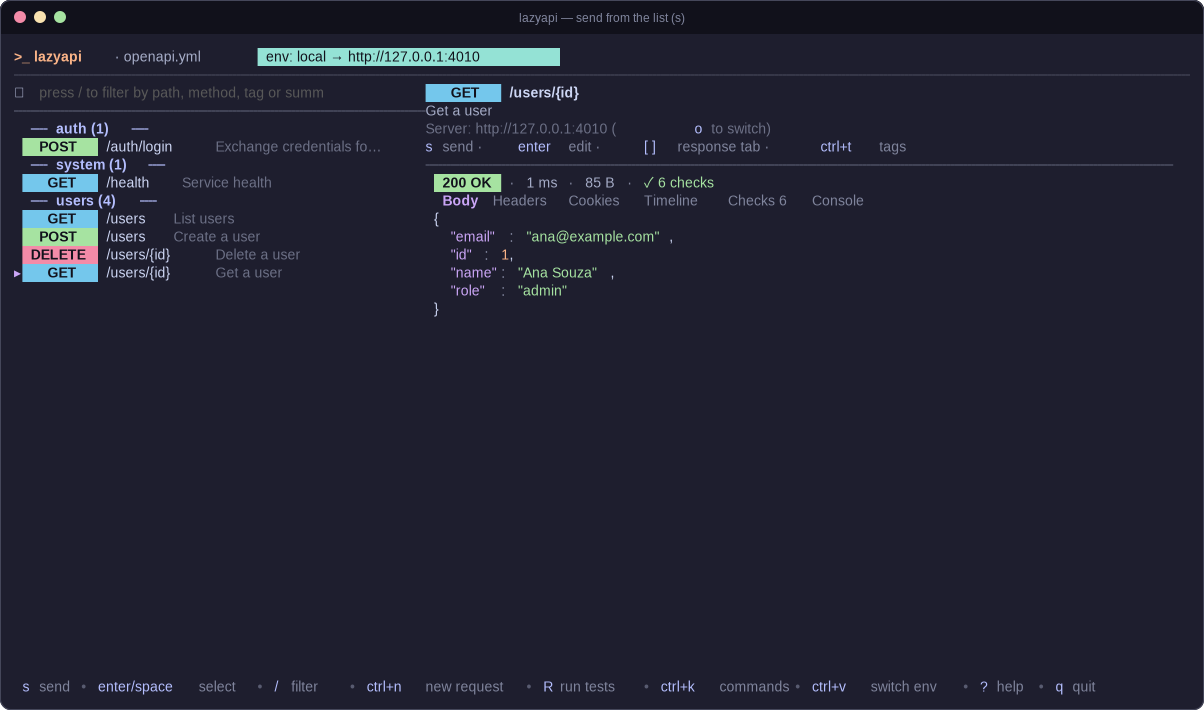
Select an item to see its preview on the right:
- Request method, URI, and summary
- Server URL
- Description (if present)
- Keybinding hints
Press s to send the request. The response appears inline:
- Status code (colored: 2xx green, 3xx yellow, 4xx/5xx red)
- Response headers
- Response body (JSON/YAML formatted, scrollable with PgUp/PgDown)
Actions
| Key | Action |
|---|---|
↑/k, ↓/j | Navigate items |
Enter | Open selected in editor |
s | Send selected request (response in preview) |
Ctrl+T | Edit tags (overlay at cursor position) |
/ | Focus filter |
Esc | Blur filter / clear filter text |
Ctrl+N | Create a new draft request |
d | Duplicate selected request |
x | Delete selected request |
q | Quit |
? | Show full help |
Filtering
Press / to focus the filter bar. Type to narrow items by method, path, summary, or tag name. Esc clears the filter and blurs.
While filtering, ↑/↓ still navigates through filtered results. Enter opens the selected item.
Tag Editing
Press Ctrl+T on a selected item to open the tag editor overlay at the cursor position:
┌─ Edit Tags ────────────────────────┐
│ [pets] ×  [users] ×                │
│                                    │
│ Add tag: [____________]            │
│                                    │
│ Tab: delete mode  Enter: save      │
│ Esc: cancel                        │
└────────────────────────────────────┘- Tab — cycle through tags for deletion
- Enter on a tag — remove it
- Type in the input — add a new tag (Enter to confirm)
- Enter (with empty input or input blurred) — save and persist
- Esc — discard changes
For spec-backed requests, tags are written directly to the OpenAPI file.